Prerequisites
This tutorial will use the Blitz mqtt monitoring tool, available here.
You need to have an mqtt broker set up and running. Both the device and the GUI, or Blitz in this case, will connect to it.
Connect device
In this tutorial you will learn to communicate with the system. You will send messages manually with the Blitz tool and observe how the device responds. You will send the same commands that a GUI will send, and make sure the device responds correctly.
A real GUI will periodically ping for devices. It does so by publishing { value: "1" } to the publish_all_connected topic. Your device must respond by publishing { id: "your_device_id" } to the device_connected topic. It's not enough to only respond once, because the GUI will think your device has been disconnected if it doesn't receive a message for a period of time.
Blitz
- Open the Blitz mqtt monitoring tool.
- Connect to your mqtt broker.
- Subscribe to the
device_connectedtopic. - At the top of the page in the publish section, input
publish_all_connectedas the topic and{ value: "1" }as the payload.
Now Blitz is setup to monitor the device connection. If you want to confirm that everything is working on Blitzs end, you can publish a message to the device_connected topic to see that it appears in the subscribed topics section.
Device
- Connect to your mqtt broker.
- Subscribe to the
publish_all_connectedtopic. - When you receive
{ value: "1" }, respond by publishing{ id: "your_device_id" }to thedevice_connectedtopic. - Confirm in Blitz that the device is connected. You should see a message like
{ "id": "your_device_id" }in thedevice_connectedtopic.
Example:
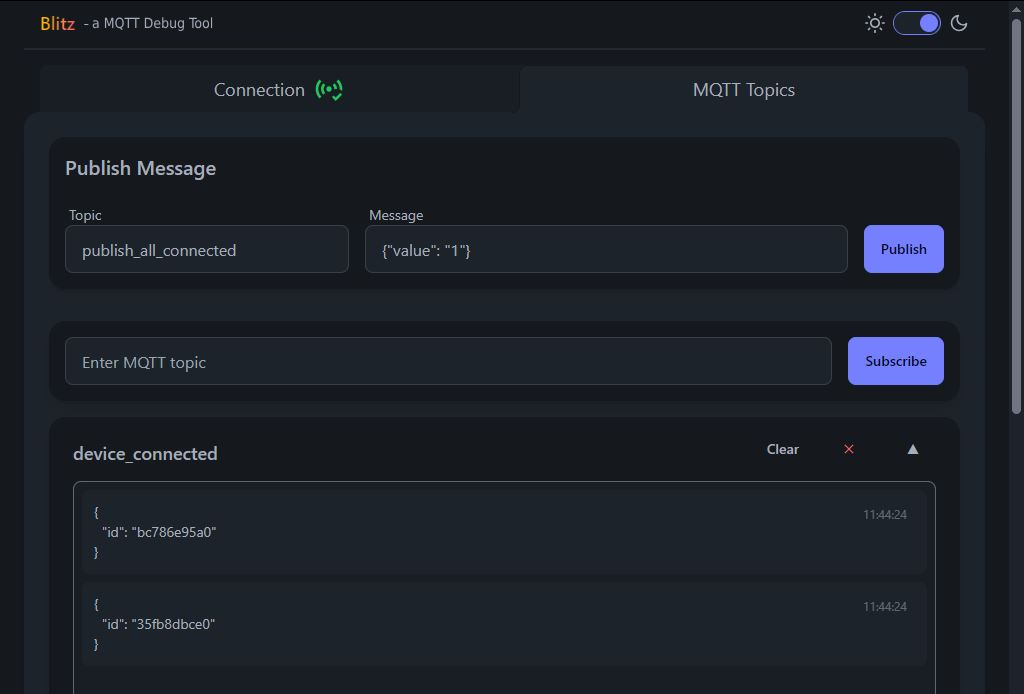
This picture shows an example of what the response can look like (click to zoom). Two devices reported their ids when the message was sent to publish_all_connected.
Meta data
The metatadata is information about your device and the data it will send. It also contains information about the parameters that your device supports. The parameters will let the gui send values to your device.
To review the structure of the metadata object, see the communication specification.
Blitz
- Subscribe to the
device_metatopic. - In the decive_connected topic, you can see which device is connected and get their id.
- Publish
{ value: "1" }to thepublish_meta/{device_id}topic to request the metadata for a specific device.
Device
- Subscribe to the
publish_meta/{device_id}topic. - When you receive
{ value: "1" }, respond by publishing the metadata to thedevice_metatopic. - Confirm in Blitz that the device is connected. You should see the metatadata in the
device_metatopic.
Example:
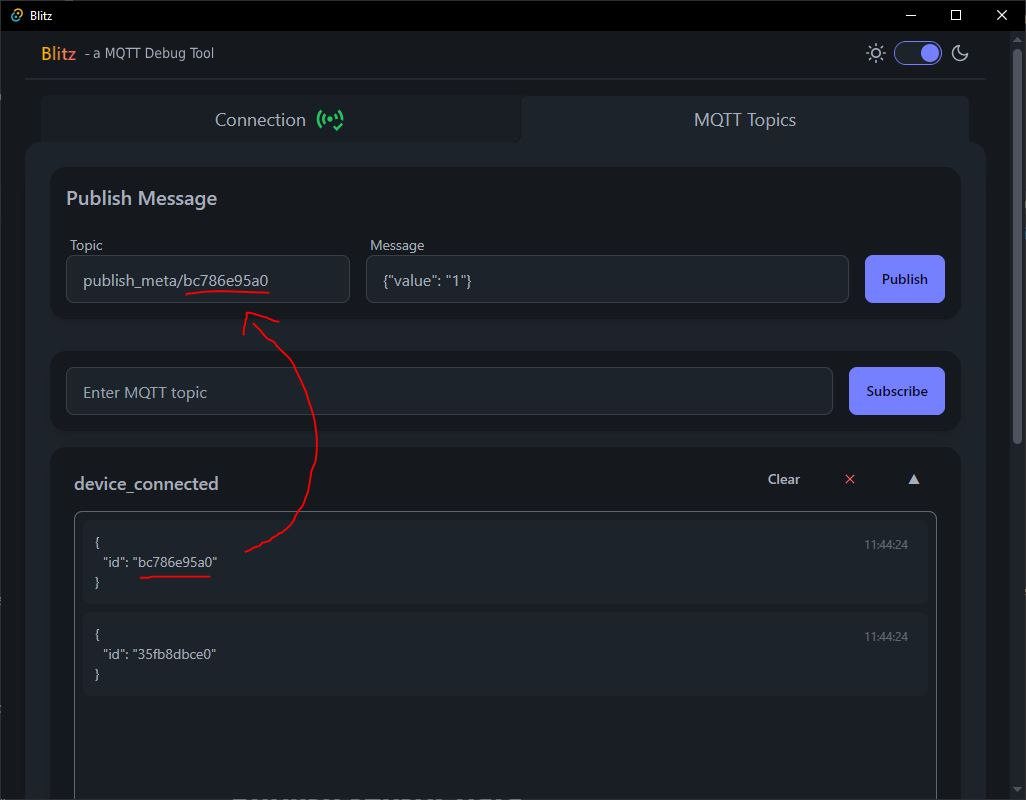
Use the id in the response to form the topic publish_meta/{device_id}
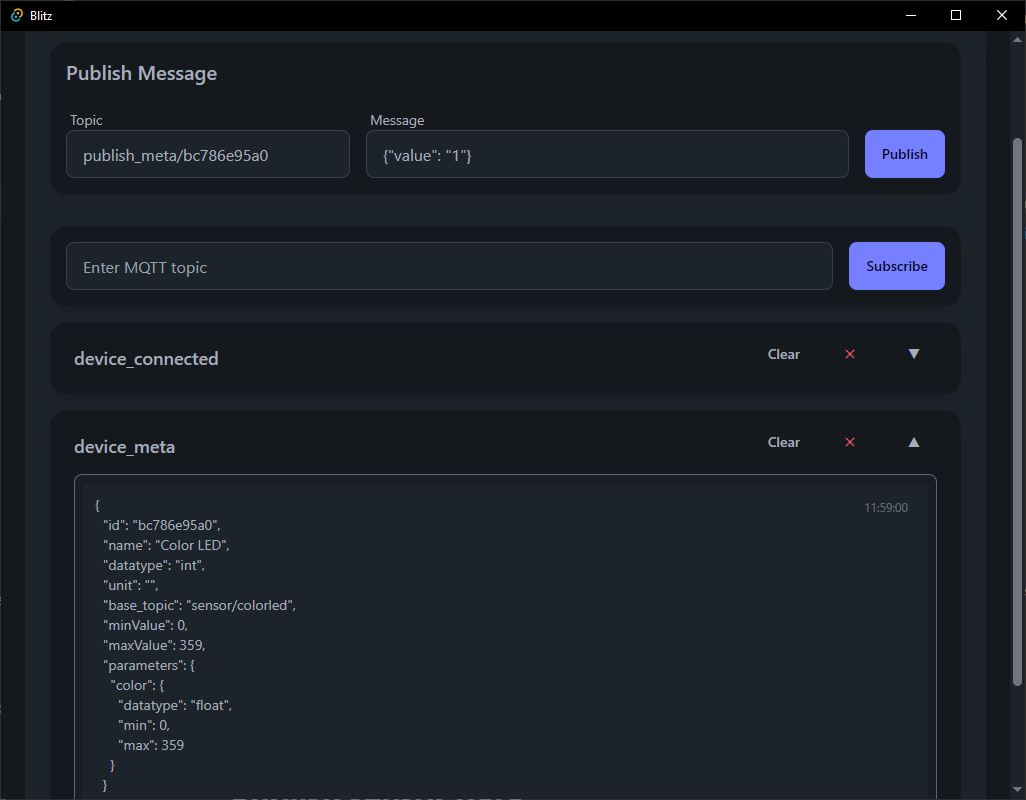
The device responds with it's metadata.
Publish sensor data
Blitz
- Subscribe to the
{base_topic}/{device_id}topic. You can find both values in the metadata.
Device
- Publish values periodically to the
{base_topic}/{device_id}topic. The structure of the message is described in the communication specification.
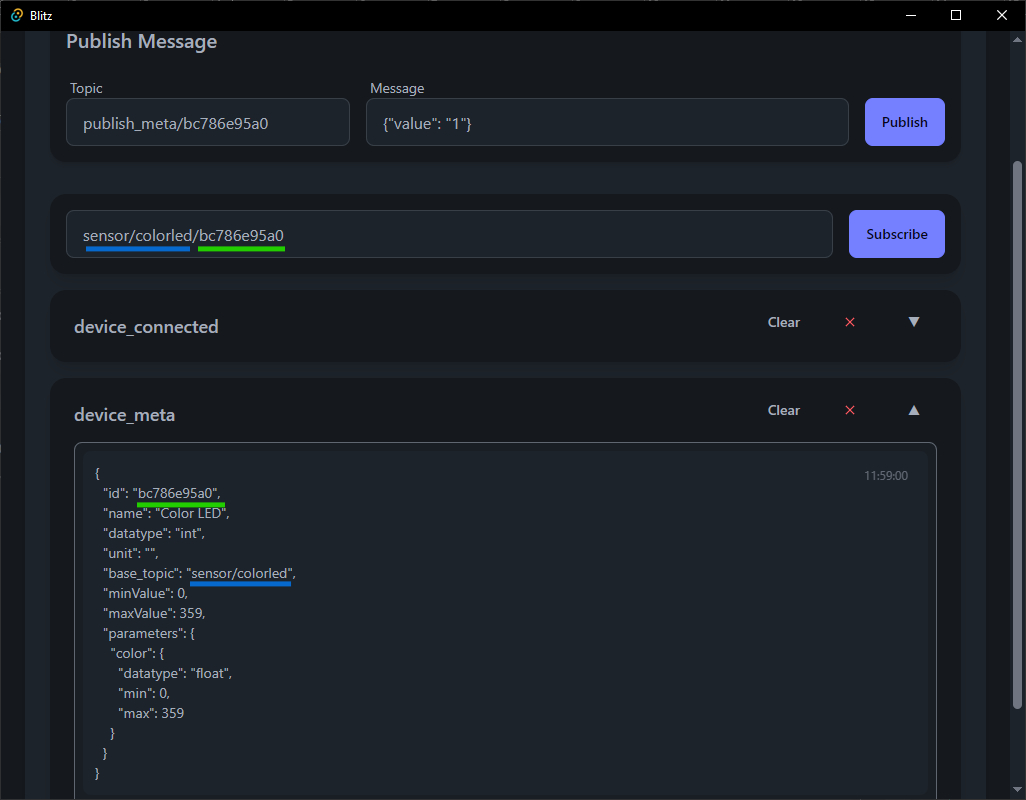
Subscribe to the devices {base_topic}/{device_id} that you can find in the metadata.

You can now monitor the values sent by the device.