Install MQTT Broker (Windows)
Mosquitto is a popular open-source MQTT broker. Here’s a step-by-step guide to installing and running Mosquitto on a Windows system.
Install Mosquitto
Install mosquitto - https://github.com/eclipse/mosquitto
https://mosquitto.org/download/
Configure Mosquitto server
Configuring the server (Windows)
To protect your broker from unauthorized connections, you need to set up a username and password. Open a commandline (Administrator) and navigate to the folder where mosquitto is installed, normally C:\Program Files\mosquitto. For convenience and consistency within this project, we use knightec both as user and password.
run the command:
mosquitto_passwd -c [password filename] [username]
After you run this command, you will be prompted to set a password
Then edit your mosquitto.conf file:
-
Navigate to where you installed mosquitto, default C:\Program Files\mosquitto.
-
Open mosquitto.conf
-
Scroll down to # Listeners
-
Add:
listener 1883
protocol mqtt

listener 8080
protocol websockets -
Scroll down to # Security
-
Remove the # infront of allow_anonymous false
-
Scroll down to # Default authentication and topic access control
-
Remove the # from password_file
-
Add the password filename that you chose earlier in this guide, so that it says "password_file [password filename]"
You should have ended up with something like this:
[...]
# listener port-number [ip address/host name/unix socket path]

listener 1883
protocol mqtt

listener 8080
protocol websockets

socket_domain ipv4
[...]

# If this is set to true then authentication is disabled.
allow_anonymous false

[...]

# password_file, the plugin check will be made first.
password_file passwd

[...]
Starting the server
Now that you have your .conf file set up you can start mosquitto in verbose mode by running the following command:
mosquitto -v -c mosquitto.conf
Running it in verbose mode will give you better messages on what's going on in the server than if you're running it in normal mode.
Alternatively, you can use this convenient batch file to start the server: To download the file, right-click the link above and choose "Save Link As." Download start_mosquitto.bat
If you have mosquitto service installed, either stop it or uninstall it before running this bat file. Otherwise you will get an error saying that the port is tied to another process.
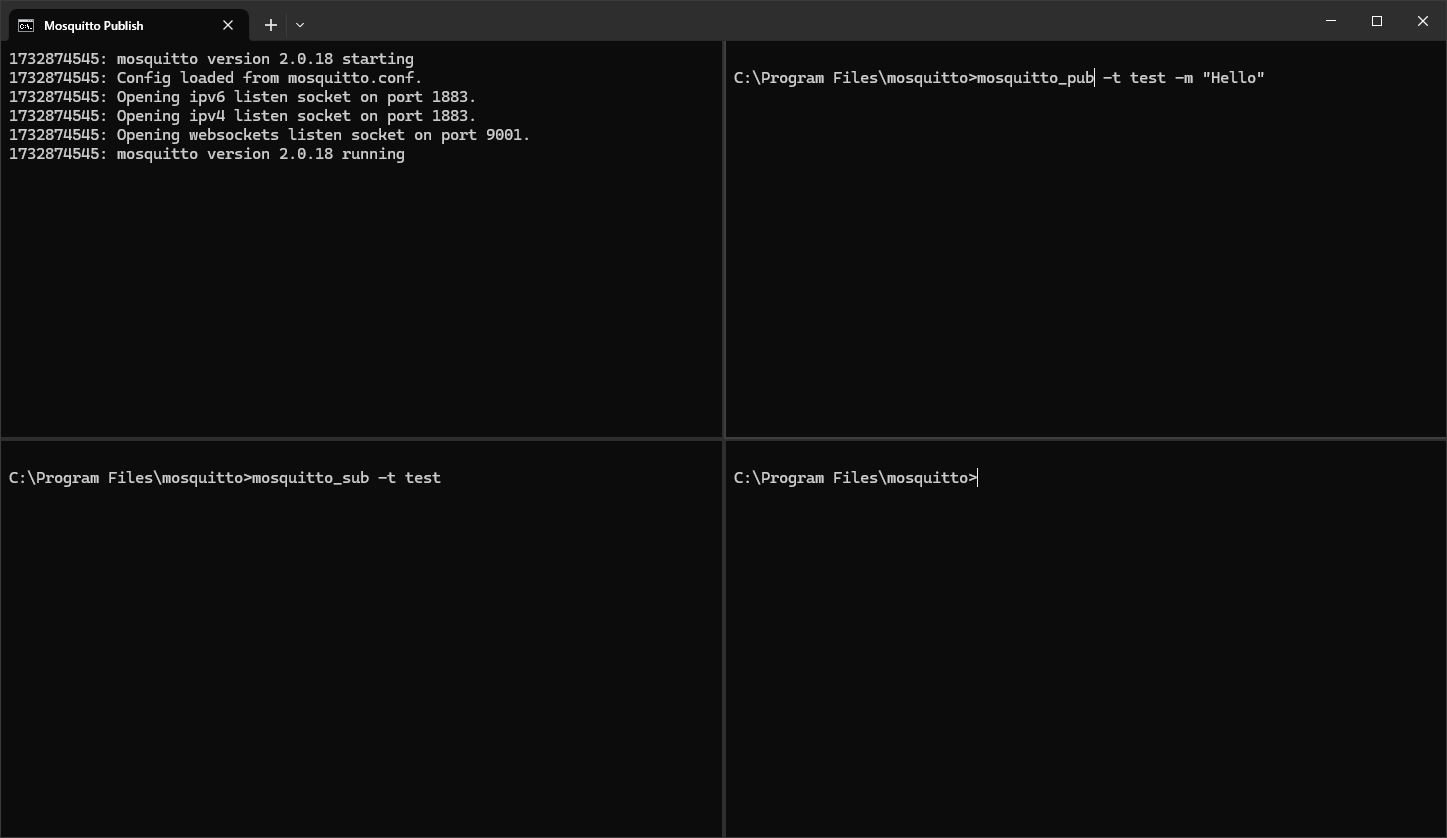
This is a preview of how it looks:
Set up a topic on the server
Press Win + R and type cmd and press enter. Run these command:
- cd "C:\Program Files\mosquitto"
-
mosquitto_sub -t test_sensor_data -h localhost -u [username] -P [password]
Press Win + R and type cmd and press enter. Run these command:
- cd "C:\Program Files\mosquitto"
-
mosquitto_pub -t test_sensor_data -h localhost -u [username] -P [password] -m "temp:100"
In your first cmd window you should see the temp:100 message. This means that your server is working.